Modern Resume Templates: Sidebar and Two-Column
A modern resume template uses layout and colour to make a page easier to scan: a sidebar for contact details and skills, a main column for experience. MakeCV has two templates in this family, Modern with a dark sidebar and Aurora with a light two-column body. Both look polished in a recruiter's inbox. Here is when to use them, and when not to.
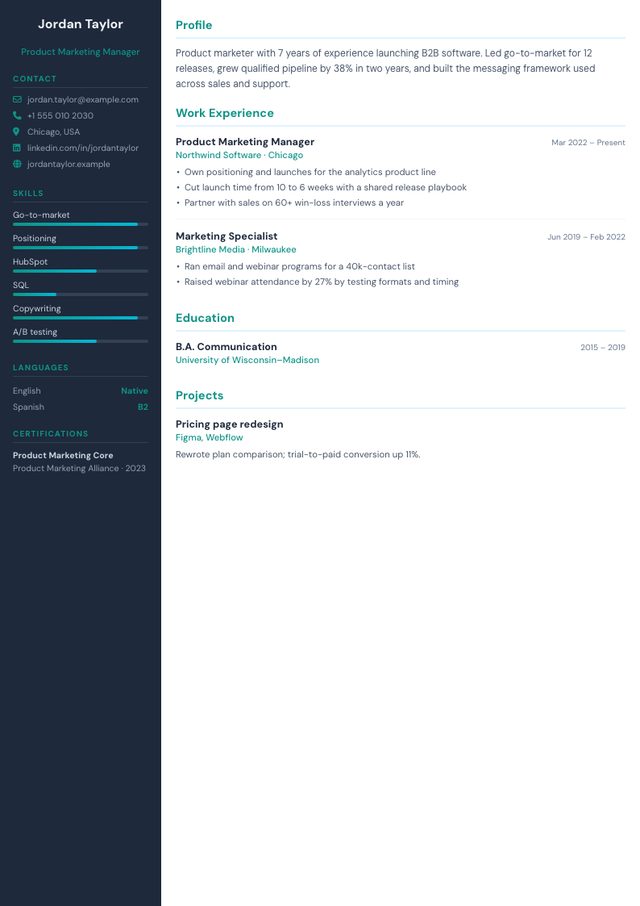
- Layout: Dark left sidebar + main column
- Photo: Optional, round, in the sidebar (nothing shown if you skip it)
- Look: Navy sidebar, teal accents, skill bars
- Suits: IT, marketing, sales, startups
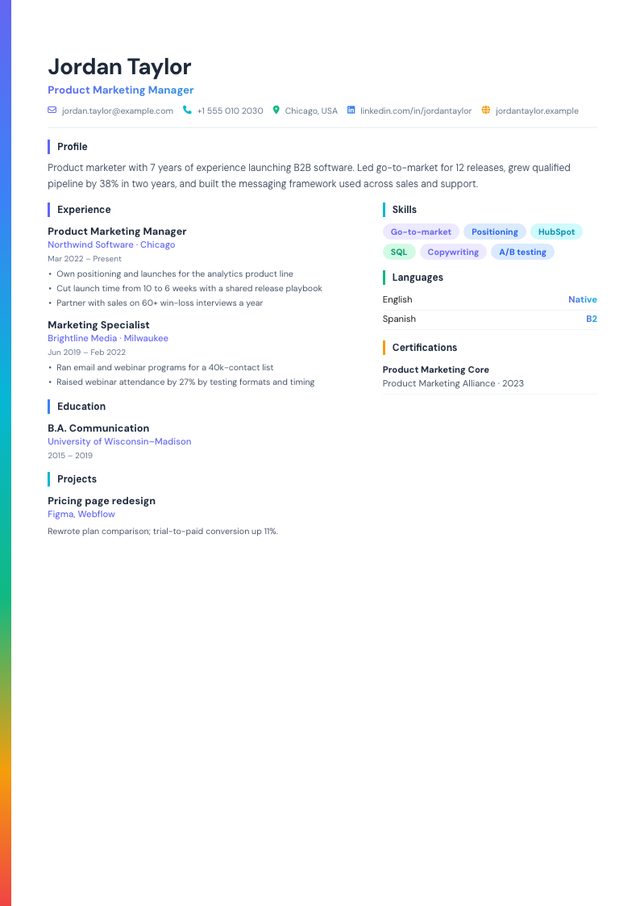
- Layout: Header + two columns below
- Photo: Optional, round (nothing shown if you skip it)
- Look: Gradient edge stripe, colourful skill pills
- Suits: Marketing, communications, customer success
What a modern layout does well
- Separates "facts" from "story". Contact details, skills, languages and certifications sit in the sidebar; your experience gets the wide column. A reader finds both in seconds.
- Fits more on one page without shrinking the font, because short items (skills, languages) no longer take full-width lines.
- Signals currency. In tech, marketing, sales and startups, a clean modern layout fits the culture better than a 1990s-style document.
The trade-off: parsers and sidebars
Applicant tracking systems turn your PDF into plain text before anyone reads it. With a single column the order is obvious. With a sidebar, the parser has to decide whether to read left-to-right across both columns or one column at a time. Most modern systems get it right, but the sidebar is still the layout most likely to end up with your phone number in the middle of a job description.
Rule of thumb: if you apply through a company portal (Workday, Taleo, iCIMS, SuccessFactors and similar), use Classic or Minimalist. Save Modern or Aurora for applications where a person opens the file directly: email, referrals, LinkedIn messages, recruiters.
The good news is that you don't have to choose once. MakeCV keeps your details when you switch templates, so you can download a Modern version for people and a Classic version for portals in under a minute.
Modern vs Aurora
| Modern | Aurora | |
|---|---|---|
| Structure | Dark navy sidebar on the left (photo, contact, skills, languages, certifications), white main column | Full-width header and summary, then two light columns |
| Skills | Shown with level bars | Shown as coloured pills |
| Contact details | In the sidebar | In the header, under your name |
| Ink on paper | Heavy (dark sidebar) | Light |
| Best for | IT, sales, product, startups | Marketing, communications, customer success |
If you like the modern look but worry about parsing, Aurora is the safer of the two: your contact details stay in the header, where parsers expect them.
How to fill in a modern template
- Keep sidebar items short. Skills should be one to three words each ("Python", "Stakeholder management"), not sentences.
- Limit skills to the ones that matter for this job. Six to ten is plenty; a long list of bars looks padded.
- Put achievements in the main column. The sidebar lists what you know; the experience section proves it with results.
- Use the summary. It sits at the top of the main column and is the first thing read. See summary examples.
Download tips
Use Download PDF when you want an exact visual copy to email to a person. Use ATS PDF (print dialog → Save as PDF) when uploading to a portal: it produces real, selectable text and keeps the sidebar colour. More detail in the ATS resume guide.